
iCloud sync
Turning it on
- Click the menu bar icon → Settings…
- Under General, turn on Sync via iCloud.
- Do the same on each Mac that’s signed in to the same Apple Account.
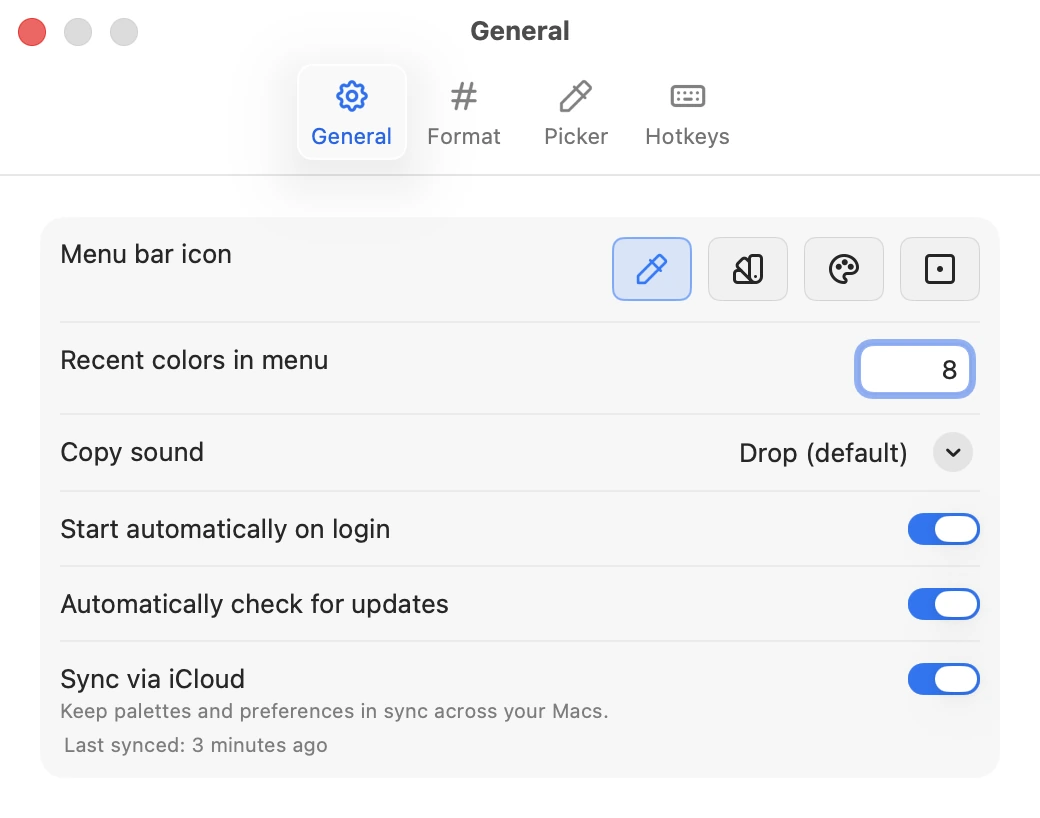
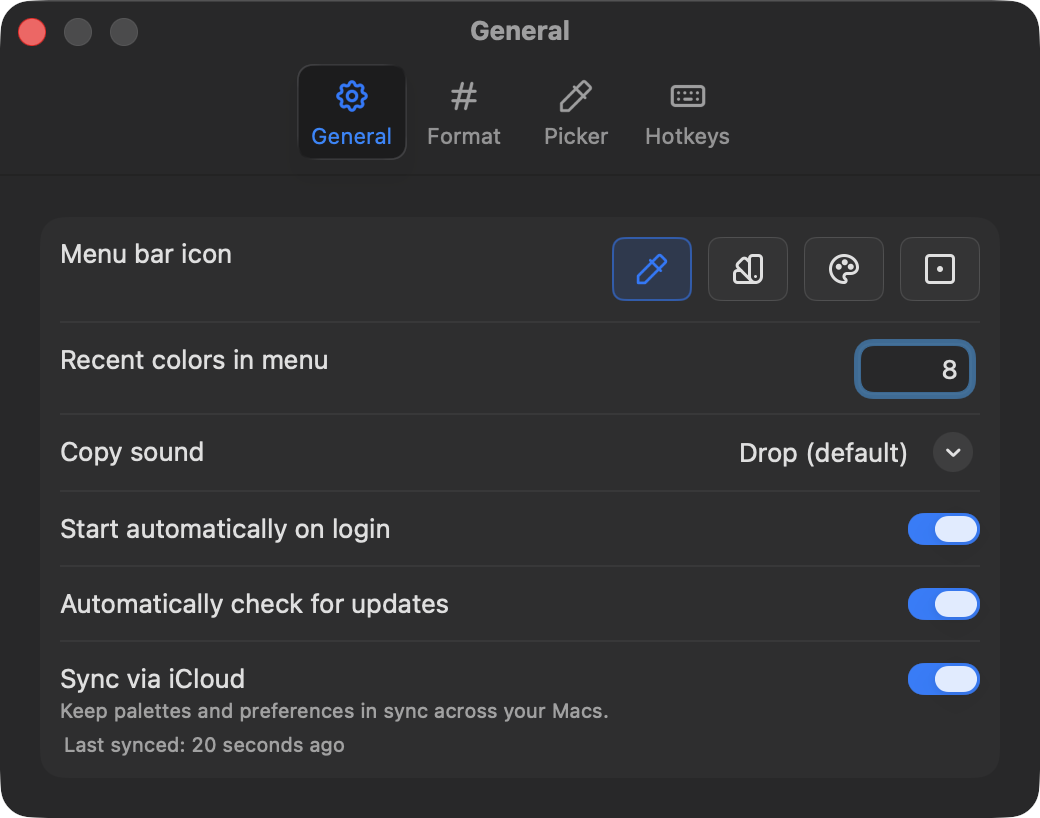
Sync is off by default and included in the free tier. The first time you turn it on, ColorCopy pulls whatever is already in iCloud, merges it with what’s on this Mac, and pushes the result back. Nothing is deleted in that first merge (see below for what happens when both Macs already have data).
What syncs
Palettes and colors:
- Every palette in your library: names, scales, swatches, labels, stars, and the order they appear in.
- Favorites (the starred swatches in the menu bar).
- Recent colors.
- Which palettes are collapsed in the palettes window.
Preferences:
- Default format, the
#prefix, lowercase, and decimal precision. - Contrast algorithm (WCAG 2 or APCA).
- Swatch size and both Close on copy toggles.
- Copy sound, menu bar icon style, and language.
- Whether Recent Colors is shown and how many to keep.
- All four global hotkeys.
What doesn’t sync
- Your Pro license. Activate each Mac with your license key. One key works on up to 5 Macs, and you can manage them from Unlock Pro… or the Polar customer portal. See support for the details.
- The free tier’s monthly copy count. It’s counted per Mac.
- Start automatically on login and Automatically check for updates. These are per-Mac choices.
- Window sizes and positions.
How changes travel
ColorCopy uses iCloud’s key-value store, the same mechanism many Mac apps use for small amounts of settings data. A change is pushed about a second after you make it and arrives on your other Macs whenever iCloud delivers it, usually within a minute. ColorCopy has to be running on the receiving Mac, but it doesn’t need to be in front.
There is no ColorCopy server in the middle. Data goes from your Mac to your iCloud account and back to your other Macs. We can’t see any of it.
When two Macs disagree
- Palettes merge one at a time. If you edited the same palette on two Macs while one was offline, the most recent edit wins for that palette. Other palettes aren’t affected.
- Deleting a palette deletes it everywhere. ColorCopy remembers the deletion for 90 days so a Mac that has been offline for a while doesn’t bring the palette back. A Mac that stays offline longer than that might, in which case just delete it again.
- Preferences take the most recent value. Each setting is handled on its own, so changing the copy sound on one Mac won’t undo a format change on another.
If both Macs already have data
Turning sync on merges your libraries rather than replacing one with the other, so palettes from both Macs end up everywhere. If you had added the same preset on both Macs before enabling sync, you’ll see it twice. Delete one copy and the other stays. Preferences take whichever value was changed most recently.
The status line
With sync turned on, a line under the toggle tells you what’s going on:
- Syncing… — the first pull and push is in progress.
- Last synced — the time of the last successful push or pull.
- Approaching its size limit — iCloud gives each app about 1 MB for this kind of storage. ColorCopy compresses palettes, so even large libraries fit comfortably, but if you see this warning, delete palettes you no longer use.
Turning it off
Turning the toggle off stops sending and receiving. Everything stays on this Mac, and your other Macs keep what they have. Your data in iCloud is left in place, so turning sync back on later picks up where you left off.
If something isn’t syncing
- Make sure both Macs are signed in to the same Apple Account in System Settings → iCloud.
- Make sure ColorCopy is running on both Macs. It only receives changes while it’s open.
- Give it a minute. iCloud delivery isn’t instant.
- Turn the toggle off and on again to force a fresh pull and push.
- If you see the size warning, trim your library and try again.
Still stuck? Drop us a line.
Related
- Palettes — what’s being synced.
- Global hotkeys — also follow you between Macs.
- Privacy — what the app does and doesn’t send.