Every color on your Mac, a click away.
ColorCopy lives in your menu bar. Click any pixel on your screen and the color lands on your clipboard in your favorite format. Dial in a color visually, paste any string and see every format at once, build palettes, check contrast. No DevTools gymnastics. No Figma side-quest. No account to create.
macOS 14+ (Apple Silicon & Intel) · Free download · Pro is one-time, no subscription
Built for every workflow
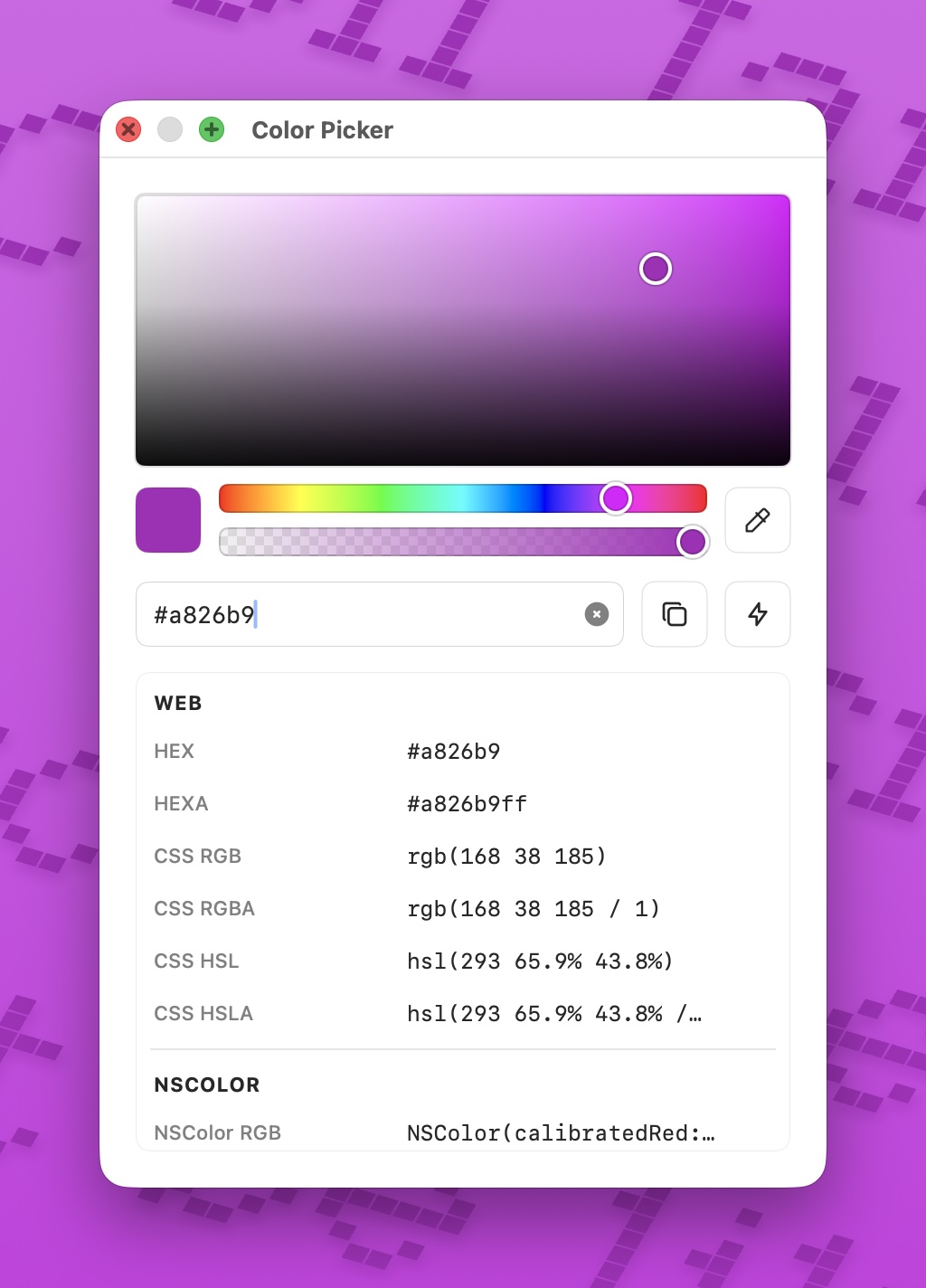
Color Picker Anywhere
Paste, type, or sample any color, then watch every format you care about update in real time. Drag the inline picker to fine-tune, or hit the eyedropper to grab something off the screen. One click copies the format you want. Or, skip the window entirely with Quick Pick, a hotkey that fires the eyedropper and drops the color straight onto your clipboard.
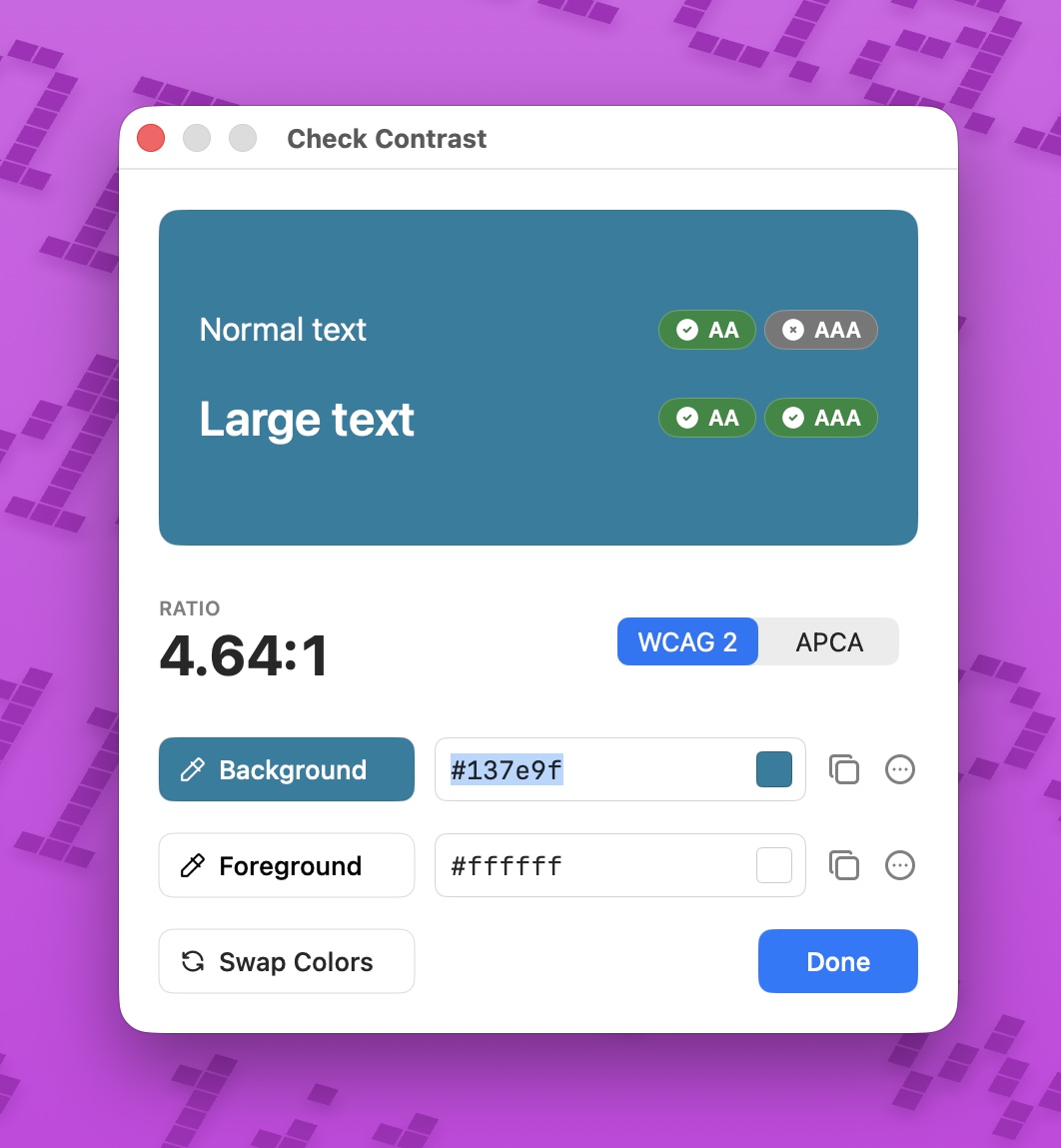
Check Contrast Quickly
Pair any two colors and see the ratio at a glance, with pass/fail badges for AA and AAA across normal and large text. Switch between WCAG 2 and APCA, swap foreground and background, and ship interfaces that everyone can read.
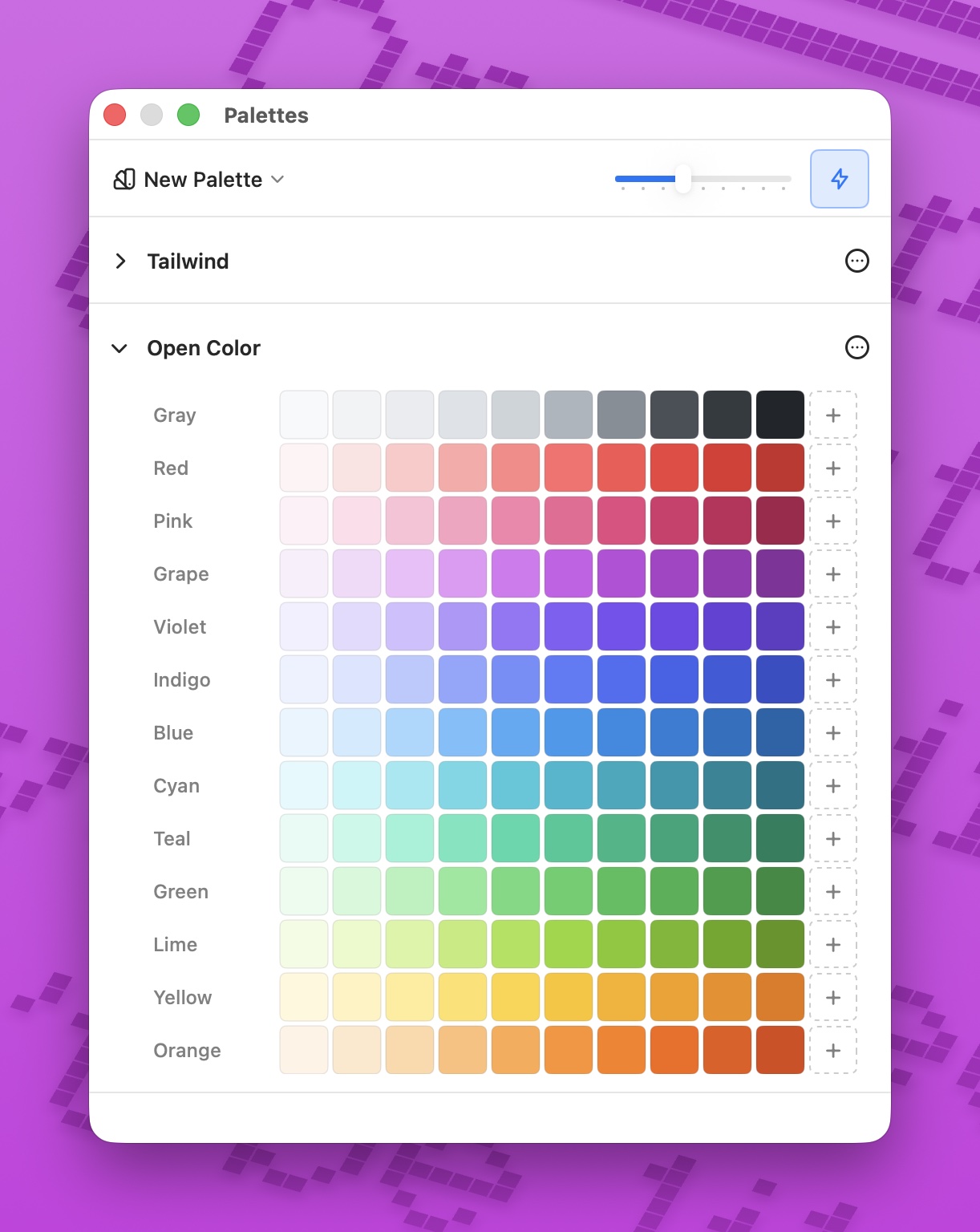
View and Curate Palettes
Organize the colors you actually use into named palettes you can browse, search, and share. Import from ASE, CLR, JSON, or CSS. Export to whatever the next tool in your pipeline needs.
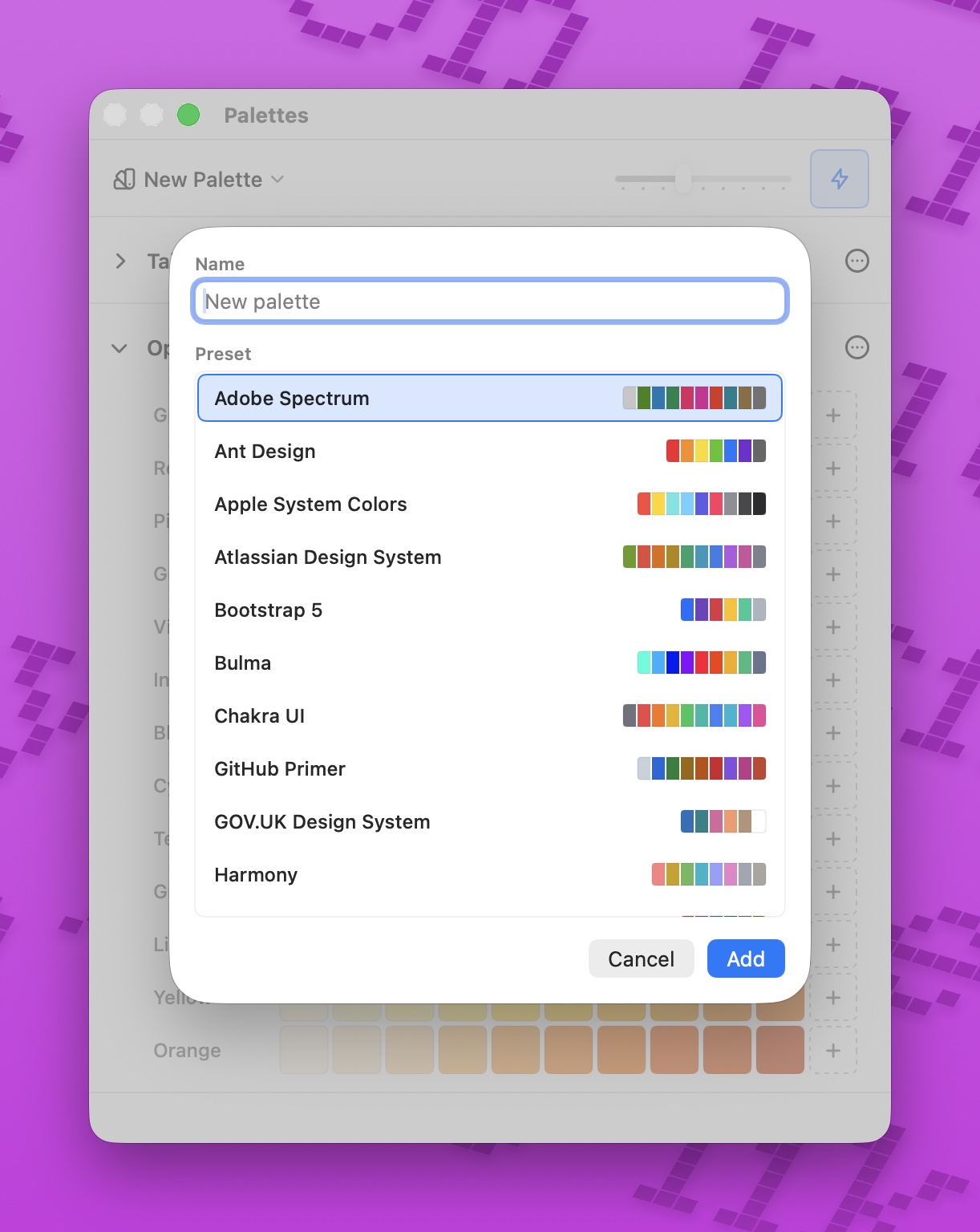
Create Palettes from built-in presets
Spin up a fresh palette from a curated preset. Choose from Adobe Spectrum, Tailwind, Bootstrap, GitHub Primer, and many more. With thumbnail previews so you know exactly what you’re getting before you save it.
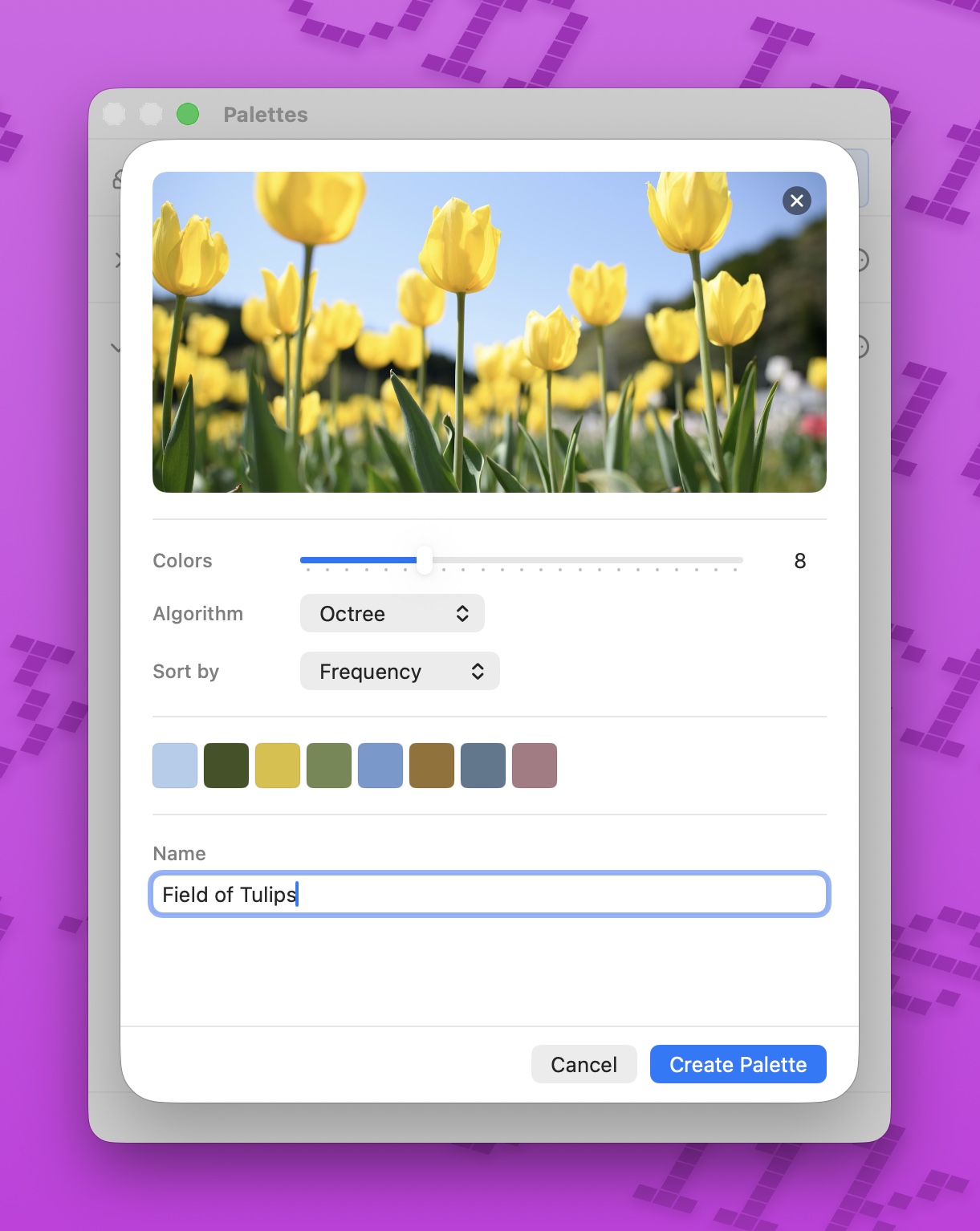
Create Palettes from images
Drop in a photo, screenshot, or mockup and ColorCopy pulls out the dominant colors instantly. Dial the swatch count up or down, pick your quantization algorithm, and sort the results until the palette feels right.
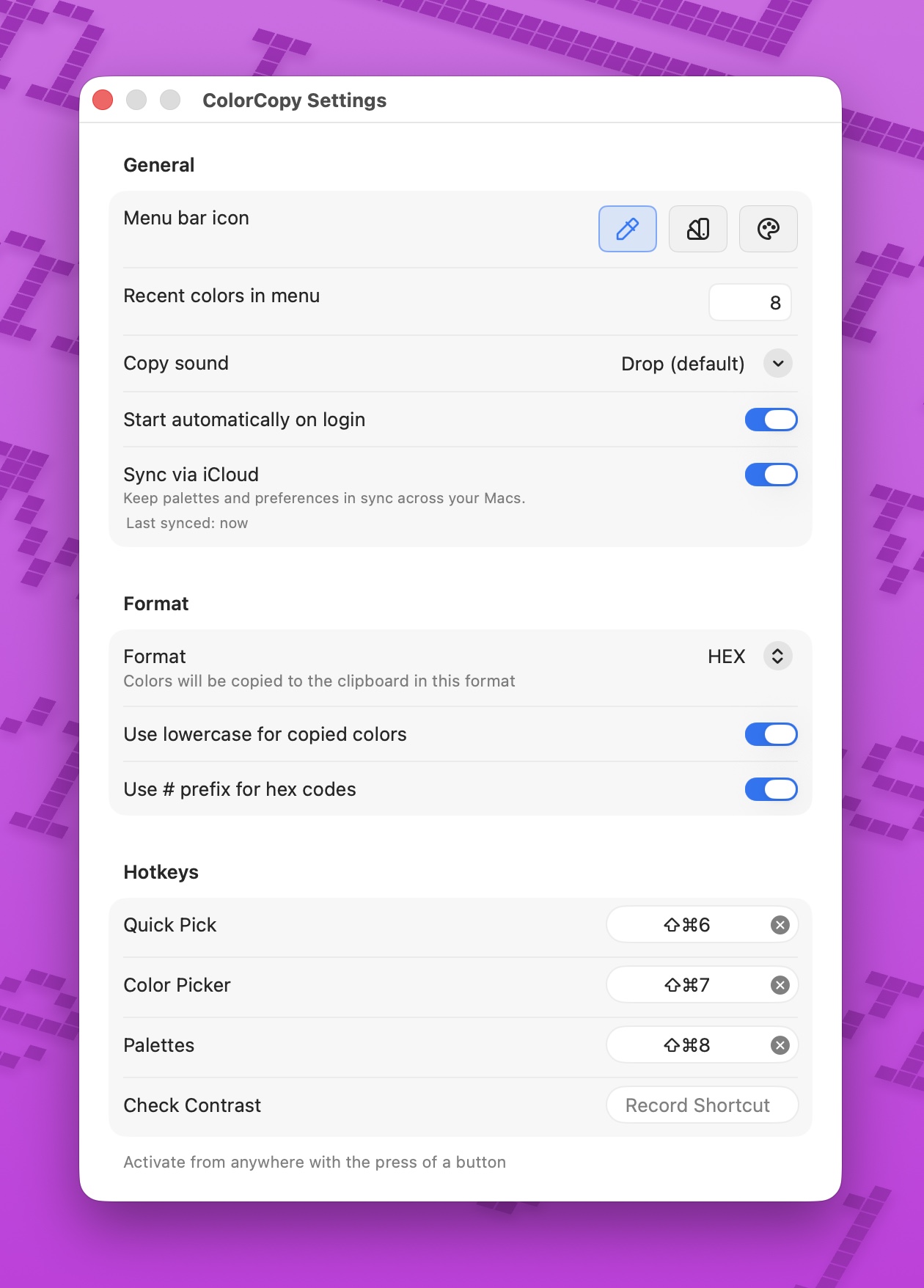
Customize with Settings
Pick the menu bar icon you like, choose how copied colors look (format, lowercase, hash prefix), and assign hotkeys for Quick Pick, Color Picker, Palettes, and Check Contrast. Sync palettes and preferences across your Macs via iCloud.
What it does (really well)
(Compelling demo video coming soon)
One click. Any pixel. Your clipboard.
Press your hotkey, click the pixel you want, done. It uses the same sandboxed color sampler that Apple uses in Xcode and Preview, so it’s pixel-perfect and works inside every app, website, video, and PDF on your Mac. No flaky browser extensions, no “open DevTools first” rituals, no third-party servers in the loop.
20+ formats for the code you actually ship
HEX, CSS, Swift, SwiftUI, UIColor, NSColor, Obj-C, .NET, Java, Android. Pick once, copy in whatever the current project demands. No mental hex‑to‑float conversion at 2 AM.
The Color Picker, all in one window
Dial in a color with the visual saturation/hue/alpha picker, sample one with the eyedropper, or paste a hex, an rgb(), or a CSS color name. ColorCopy shows the result in every supported format. Click a row to copy. Open the window with a color on your clipboard and it pre-fills automatically.
Ship colors that pass WCAG
Built-in contrast checker with AA and AAA ratings for normal and large text. Switch to APCA when you need perceptual contrast (with pass/fail for body, large text, and graphics/UI). Failing a threshold? Open the “More actions” menu next to a swatch, pick a target, and ColorCopy adjusts the color to the exact ratio you need.
Palettes for the colors you keep using
Save and organize swatches into palettes. Start from 24 built-in presets (Tailwind, Material Design, Radix, Apple System Colors, and more), or build your own. Star any swatch to surface it under Favorites in the menu bar: one click and that exact color lands on your clipboard.
Drop an image, get a palette
Drag an image onto the palettes window and ColorCopy extracts the dominant colors using K-means, median cut, or octree quantization. Pick how many colors to pull (2–24), sort by frequency, hue, or lightness, save as a new palette.
Import & export in eight formats
Bring palettes in from Adobe Swatch Exchange (.ase), Apple Color List (.clr), or JSON. Send them out as .ase, .clr, JSON, CSS custom properties, HTML, plain text, PNG, or PDF. Hand off to a designer, paste straight into your stylesheet, or print it.
Built to stay out of your way.
ColorCopy never opens a window you didn’t ask for and never makes you click twice when once will do. Every part of the app is a hotkey away, and the settings exist to shave clicks off whatever you do next.
A hotkey for every window
Assign global shortcuts for Quick Pick, the Color Picker, Palettes, and Check Contrast. Jump straight to the one you need without touching the menu bar.
Zero-click picking
Quick Pick fires the eyedropper and drops the color straight onto your clipboard — no window, no extra step. Open the Color Picker with a color already copied and it pre-fills itself.
Set it once, forget it
Pick your default format, hash prefix, and casing in Settings so every copy comes out ready to paste. Star the colors you reuse to surface them in the menu bar Favorites.
Every format you actually use.
Web
Apple platforms
Cross-platform
Pay once. Or never.
- 50 color copies per month
- All 21 formats (HEX, CSS, Swift, SwiftUI, UIColor, NSColor, Obj-C, .NET, Java, Android)
- Color Picker window: visual picker, eyedropper, every format at once
- WCAG 2 (AA/AAA) and APCA contrast checker with auto-fix
- Palette manager with 24 built-in presets
- Build palettes from images (K-means, median cut, octree)
- Import .ase, .clr & .json palettes; export to 8 formats (.ase, .clr, JSON, CSS, HTML, .txt, PNG, PDF)
- Favorites submenu in the menu bar
- Recent colors history (up to 50)
- Four configurable global hotkeys
- Hash prefix, uppercase/lowercase, decimal precision
- Three menu bar icon styles, nine swatch sizes
- Nine copy sounds (or silent)
- Launch at login
- Available in 10 languages
- Everything in Free
- Unlimited color copies, no monthly cap
- One-time purchase, no subscription
- One license key works on up to 5 Macs
- Support a small, independent developer
“I unlocked Pro so I’d stop rationing my color copies like a raccoon hoarding shiny things. No regrets. Mostly shiny things.”
Why ColorCopy?
No subscription
Pay once for Pro and you’re done. Or use the free tier as long as you like. No subscriptions, no “your trial has ended” emails, no recurring costs.
100% local
No servers. No analytics. No accounts. No telemetry. We don’t know you installed it — and we’re fine with that.
10 languages
English, Japanese, Simplified Chinese, German, French, Spanish, Korean, Portuguese, Italian, and Russian.
Gets out of your way
No dock icon. No windows to manage. It sits in your menu bar, waits for a click, and goes back to being invisible.
What people are saying
“It’s a menu bar icon. You click it. You pick a color. That’s the whole pitch. Somehow I use it twenty times a day.”

“DevTools has an eyedropper for webpages. ColorCopy works on every other pixel on my screen. The math wasn’t close.”

“I asked for a color picker. It gave me a color picker that respects my time and a whole lot more. I wasn’t ready for this level of commitment.”

“No account, no subscription, no telemetry. I kept reading the website looking for the catch. There is no catch. I’m suspicious but grateful.”

The people are made up. The colors are real.
Questions you probably have
Is ColorCopy really free?
ColorCopy is free to download with full access to every feature: all 21 formats, the Color Picker window, the WCAG 2 and APCA contrast checker, palettes, image-to-palette extraction, favorites, recent colors, every customization setting. The free tier is metered to 50 color copies per month, and the counter resets on the first of each month.
ColorCopy Pro is a one-time purchase that removes the monthly cap. That’s it — the rest of the app is identical. No subscriptions. No “your free trial has expired” emails.
I can’t find ColorCopy after installing it. Where is it?
ColorCopy has no dock icon and no main window. It lives entirely in the menu bar, up near the clock. After you launch it, look for the small ColorCopy icon among the others on the right side of the menu bar.
If it’s not there: your menu bar may simply be full. macOS quietly hides overflow icons when there’s no room, and on laptops the notch makes that happen sooner. Quit a few other menu bar apps to free up space, or run a menu bar manager like Ice or Bartender to reveal and reorder hidden items.
Still nothing? Make sure ColorCopy is actually running — open it again from your Applications folder (it won’t open a window, that’s expected). And if the icon is just hard to spot, open Settings and switch the menu bar icon style; ColorCopy ships three (picker, swatch, and palette).
How do I purchase ColorCopy Pro?
Click the ColorCopy icon in the menu bar and choose Unlock Pro… to open the ColorCopy Pro window, then click Buy a license. Checkout is handled by Polar, our merchant of record, and your license key arrives by email within a couple of minutes. Paste it into the same window and click Unlock. The window also appears on its own once you reach the monthly cap.
It’s a $7.99 one-time purchase, no subscription, and one license key works on up to 5 Macs.
I lost my license key (or got a new Mac). What do I do?
Your license key was emailed to you at purchase, and you can retrieve it any time — and see which Macs it’s activated on — from the Polar customer portal. On a new Mac, install ColorCopy, choose Unlock Pro…, paste your key, and click Unlock. If you hit the 5-Mac limit, deactivate an old Mac from the ColorCopy Pro window or the portal.
Bought Pro on the Mac App Store before ColorCopy moved to direct distribution? Your purchase still counts — get in touch and we’ll send you a free license key. Anything else not going through? Contact support and a human will sort it out.
Does ColorCopy send my colors anywhere?
No. Your colors never leave your Mac. ColorCopy uses Apple’s native NSColorSampler to pick pixels and writes the result directly to your clipboard. There are no analytics, no telemetry, no user accounts. The app’s only network requests are checking for updates and validating your license key if you buy Pro — neither includes your colors or palettes. We can’t sell your data, because we don’t have it.
Do I need to grant any permissions?
No. ColorCopy uses Apple’s sandboxed system color picker (NSColorSampler), the same out-of-process API used by Xcode, Keynote, and Preview, so it never asks for Screen Recording, Accessibility, or any other system access.
macOS shows its built-in loupe, you click a pixel, the color lands on your clipboard. That’s the whole flow.
What color formats does it support?
Twenty-one of them. Web: HEX, HEXA, CSS RGB, CSS RGBA, CSS HSL, CSS HSLA. Apple platforms: NSColor RGB/HSB, UIColor RGB/HSB, SwiftUI Color RGB/HSB, Swift Color Literal. Objective-C: NSColor, UIColor. Cross-platform: .NET RGB/ARGB, Java RGB/RGBA, Android RGB/ARGB.
For float-based formats (Swift, SwiftUI, etc.) you can choose 2, 3, or 4 decimal places. For hex, you can toggle the # prefix and uppercase/lowercase.
Can I convert a color from one format to another?
Yes. Open the Color Picker window from the menu bar (or its global hotkey), paste or type any color (hex, rgb(), hsl(), or a CSS color name), and ColorCopy parses it and shows it in every supported format at once.
Click any row to copy that format. The window also includes a visual saturation/hue/alpha picker and an eyedropper, so you can dial in a color from scratch if you don’t have one to paste. Or just open the window with a parseable color already on your clipboard and it pre-fills automatically.
How is this different from Digital Color Meter?
Digital Color Meter shows you a color inside its own little window and never copies it in a format any developer actually uses.
ColorCopy lives in your menu bar, copies straight to your clipboard in whichever format you pick, supports 21 formats, organizes colors into palettes, extracts palettes from images, remembers your recent picks, and ships with a WCAG 2 and APCA contrast checker that can auto-fix failing combinations. Also, it doesn’t look like it’s from Mac OS X 10.5.
Does this replace my design tool’s color picker?
It replaces the frantic workflow where you jump between Figma, DevTools, and Preview just to grab one color. Open ColorCopy, click anywhere on your screen, and the hex is on your clipboard.
Works whether the color is in a website, a native app, a Figma canvas, a YouTube thumbnail, or a screenshot someone just Slacked you.
Can I save palettes?
Yes. ColorCopy ships with a palette manager and 24 built-in presets: Tailwind, Mantine, Open Color, Material Design 3, Radix, Bootstrap 5, IBM Carbon, GitHub Primer, Ant Design, Adobe Spectrum, Chakra UI, USWDS, Microsoft Fluent UI, Atlassian, Salesforce Lightning, GOV.UK, Apple System Colors, Shopify Polaris, MUI, Pico CSS, Bulma, Vercel Geist, and Harmony. Start from any preset, build your own from scratch, or generate one from an image.
Star any swatch to surface it under the Favorites submenu in the menu bar. One click and that exact color lands on the clipboard.
Can I import or export palettes?
Yes. Drag an .ase (Adobe Swatch Exchange), .clr (Apple Color List), or .json file onto the palettes window, or use the Import command, and ColorCopy adds it as a new palette.
Export any palette in eight formats: Adobe Swatch Exchange (.ase), Apple Color List (.clr), JSON, CSS custom properties scoped to :root, HTML with inline styles, plain text, PNG, and PDF. Useful for design handoff, dropping straight into a stylesheet, sharing, or printed reference.
Can ColorCopy pull a palette from an image?
Yes. Drag an image onto the palettes window, paste one from the clipboard, or open the New Palette from Image dialog from the menu.
ColorCopy quantizes the image with your choice of K-means, median cut, or octree, lets you choose how many colors to extract (2–24), sort them by frequency, hue, or lightness, and saves the result as a new palette.
Tell me more about the contrast checker.
Pick a background and a foreground color (from your screen, from your clipboard, or by typing any color string), and ColorCopy shows the contrast with per-row pass/fail for normal and large text.
Switch between WCAG 2 (the AA/AAA standard most projects target) and APCA (the perceptual contrast metric being evaluated for WCAG 3) at any time. APCA adds a third tier for graphics and UI (icons, dividers, focus rings).
If a combination fails, click the More actions (…) button next to a swatch and pick a target ratio: AA, AAA, or one of the APCA Lc tiers. ColorCopy adjusts the color to the exact target without changing the hue more than it has to. Included in the free tier.
Can I use ColorCopy on multiple Macs?
Yes. Install ColorCopy on as many Macs as you like. Turn on iCloud sync in Settings and your palettes and preferences stay consistent across all of them, synced through your own private iCloud account.
If you upgrade to ColorCopy Pro, one license key activates Pro on up to 5 Macs at no extra cost — deactivate an old Mac any time to free up a slot.
iCloud sync is off by default, and ColorCopy works fully without it.
Will there be an iOS version?
No. iOS doesn’t let apps read pixel colors from other apps, which is the entire premise of ColorCopy. macOS only.
How ColorCopy compares
Weighing your options? These pages lay out where ColorCopy fits next to other Mac color pickers, honestly, including where the other app is the better pick.
- ColorCopy vs Sip · a real free tier and zero telemetry vs a deeper app
- ColorCopy vs ColorSlurp · ungated free tier vs a full iOS app
- ColorCopy vs ColorSnapper · contrast tools and image palettes vs the original loupe
- ColorCopy vs Pika · image palettes and dev formats vs open-source and OKLCH
- ColorCopy vs Digital Color Meter · copies real developer formats, not just a raw value
Stop hunting for colors. Start shipping them.
Download ColorCopy and never type a hex code from memory again.